
Unify and control financial services marketing
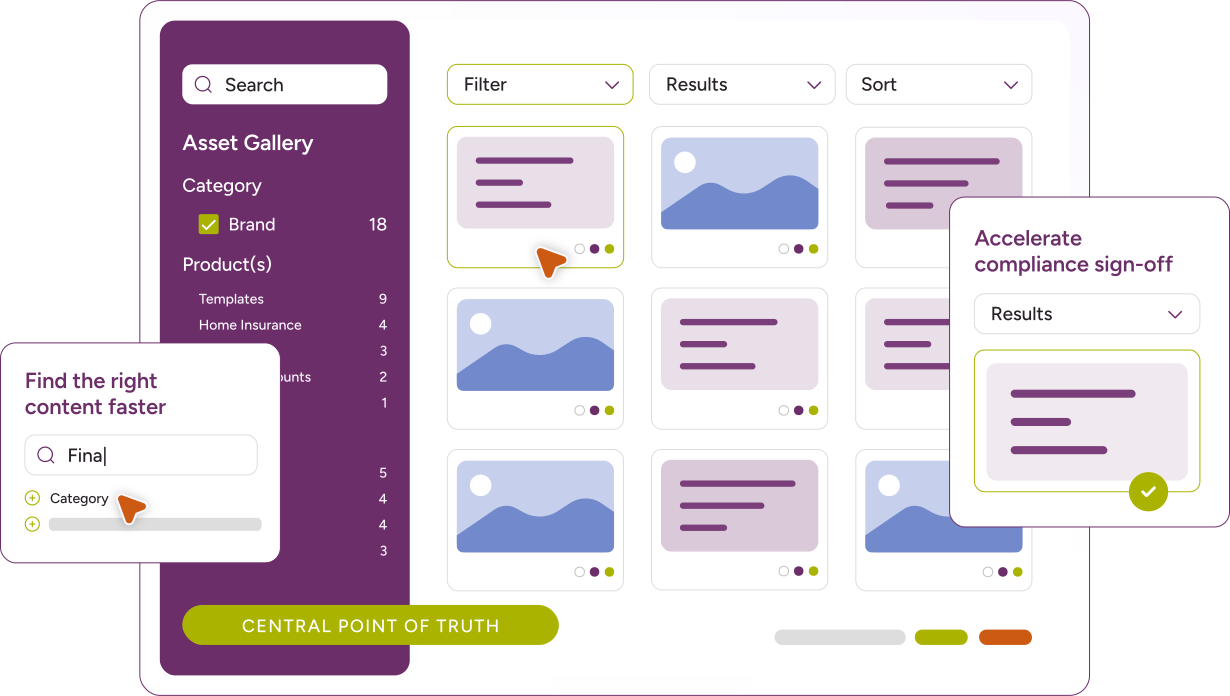



















Where marketing speed meets compliance confidence

Digital Asset Management


SeeDynamic


Workflow Management

CommsBuilder

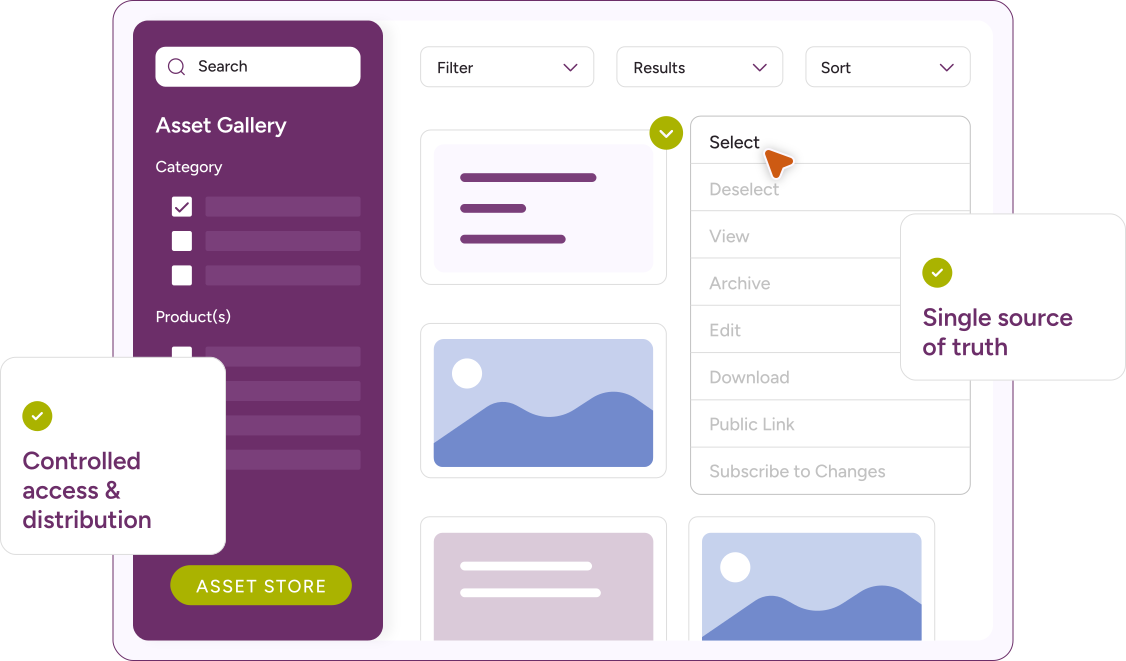
Digital Asset Management
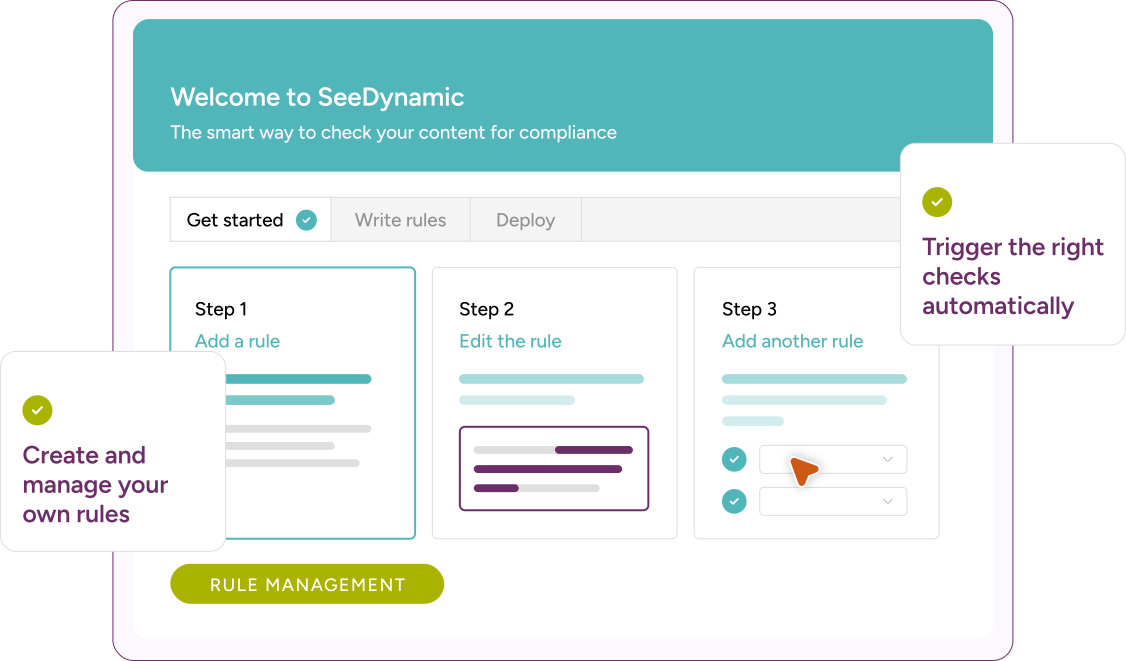
SeeDynamic
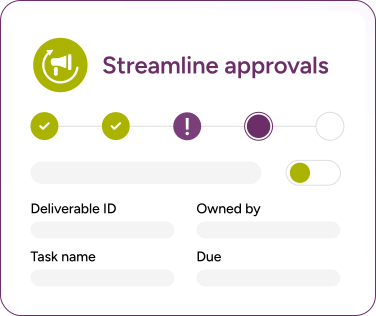
Workflow Management
CommsBuilder
Helping teams move faster without losing control



Your challenges, our solutions
Trusted and proven 20+ years Financial Services Expertise

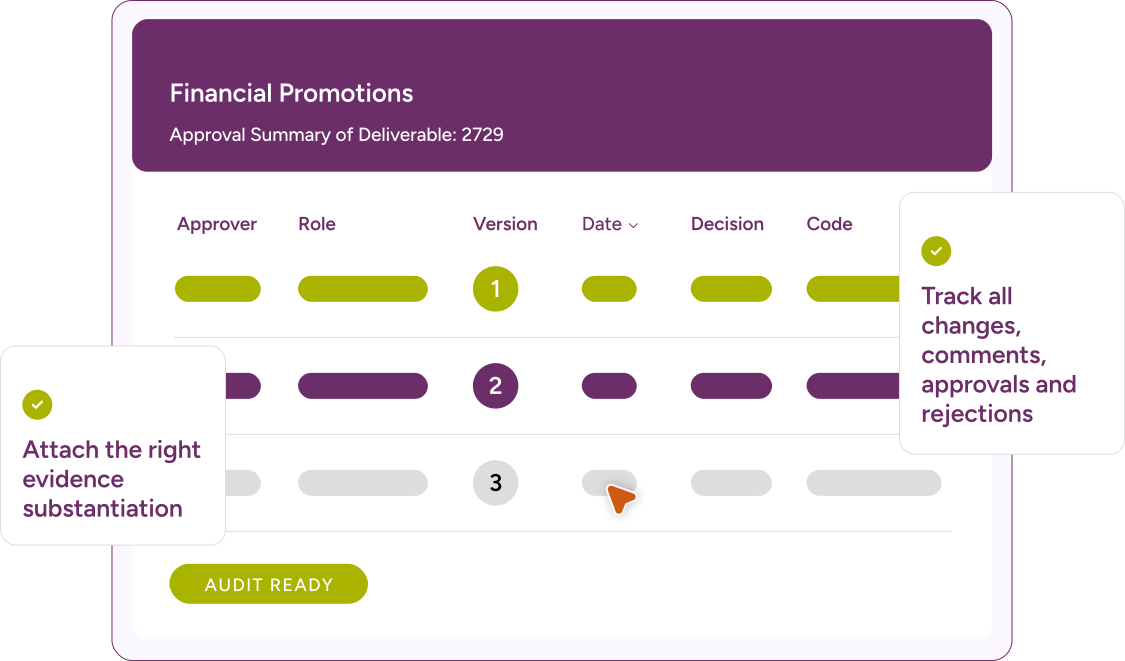
Financial Promotions

Regulated Content

Brand Asset Management

Marketing and Customer Communications
Proof not promises
Working with leading financial services teams
We’d definitely recommend bethebrand. The system is easy to use, it makes everything trackable and it helps people do their jobs with more confidence.
Hazel Phillips
Agria Pet Insurance
The bethebrand team took the time to understand exactly how we worked and what we needed from the platform. The implementation process was smooth, and they provided great support throughout.
Kirsty Igoe
Marketing Communications Manager, The Cambridge Building Society
Read more of our client stories
Our Client StoriesWithout bethebrand, I wouldn’t feel confident that we could meet our obligations as a regulated business.
Joanne Palmer
Head of Marketing, Police Mutual and Forces Mutual
INDUSTRY KNOWLEDGE
Our Insights
Regulated Marketing Compliance Software Buyer's Guide
Marketing teams across UK financial services firms are being asked to produce more...
bethebrand VS. DXP platforms
bethebrand is the financial promotions workflow, approval and asset management platform built for...
INDUSTRY KNOWLEDGE
Our Insights
Integrated Supplier Briefing
We are continuing our series examining the possibilities of how you can configure and utilise...
What exec teams need to know about governance of Financial Promotions in an AI-enabled environment
Marketing systems are changing faster than the frameworks designed to govern them.
AI is now...
A Complete Guide to Digital Asset Management for Financial Services
For two departments often considered at odds, your marketing and compliance teams share one remarkably...